Settings
On this page
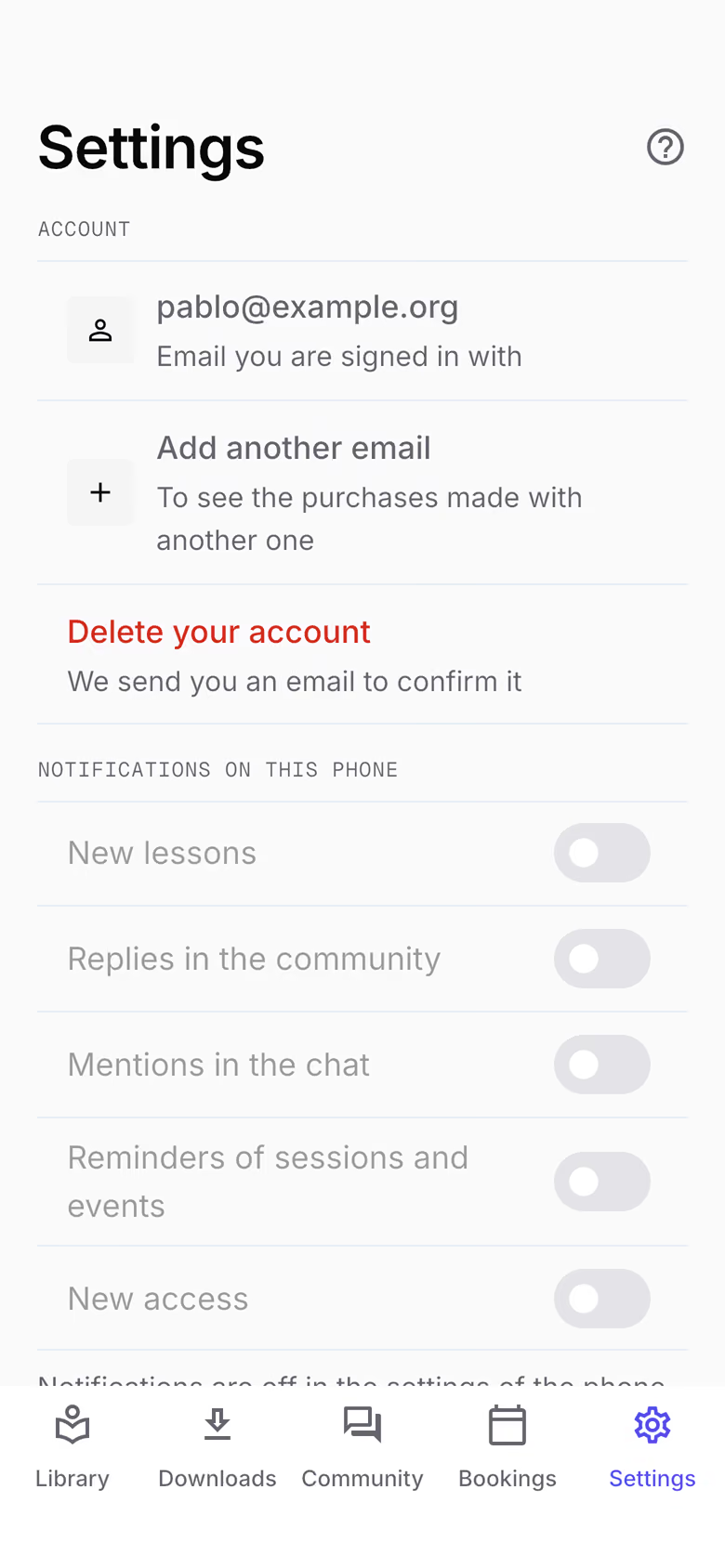
Here are the emails you sign in with, the notifications of this phone, the space of your downloads and your purchases.
How to get there
Tap Settings in the bar at the bottom of the app. You reach it from any screen with one tap.
What you can do
- Switch email or Add another email.
- Choose which Notifications on this phone you get.
- See the space your downloads take and Delete all downloads.
- Open Purchases and invoices or the Help Center.
- Sign out of the email you are signed in with.
- Delete your account of the email you are signed in with.
Step by step
See the purchases of another email
- 1. Tap Add another email.
- 2. Type the other email and the code you get.
Delete your account
- 1. Tap Delete your account.
- 2. Tap Send the email.
- 3. Open the link of the email you get to confirm the deletion.
Notifications on this phone
In Notifications on this phone you choose which notifications you get: New lessons, Replies in the community, Mentions in the chat, Reminders of sessions and events and New access. Each notification opens its lesson, its purchase or its page, and none of them brings offers or advertising.
Storage
In Storage you see how much space your downloads take. Delete all downloads frees that space without touching your purchases or your progress in the courses, and you can download anything again while you have access.
What happens next
Both emails stay on the phone. You tap one to see its purchases without typing the code again.
Keep in mind
- Notifications only apply to this phone.
- Nothing is deleted and the session stays open until you open the link of the email. Invoices and payments are kept blocked for as long as the law requires.
- Delete all downloads does not remove your purchases, which you can download again while you have access.
Frequently asked questions
Where is the Help Center?
Tap Help Center in the settings. It opens in the browser of your phone, in your language. On each screen you also have the Help button with what you can do there.
How do I change the language of the app?
The app speaks the language of your phone if it is Spanish or English, and Spanish otherwise. To use another one only in Zanabú, change it in the settings of the phone. On iPhone it is in “Settings”, the Zanabú app and “Language”. On Android it is in “Settings”, “System”, “Languages” and “App languages”. From then on your notifications arrive in that language.
Was this helpful?
Need to talk to someone?
The creator of the store sold you the product. They handle access, changes and refunds for your purchase.
Open the store from your purchase email and tap “Help” at the bottom of the page.
For a charge you don't recognise, buyer protection or your data, write to Zanabú. Write to support